In this article:
Introduction
Enable CueApp Server
Connect CueApp to the CueApp Server
Check the CueApps View for CueApp Devices Status
Introduction
CueApp Server is a feature that runs on the CuePilot Studio Server. Depending on your setup, it will need to be enabled on the Nexus Studio Server, or if you are using the BOB unit, it will run from your own laptop.
The CueApp Server feeds all of the Cues in the Timeline over the local network, to devices running CueApp, so that they can follow along to the Act as it plays.
Enable CueApp Server
On your Studio Server or laptop running as the Studio Server:
- In Setup > CueApp Server, set the Status to Enabled.
- Either keep the Interface as Default Interface, or Set Manually. To learn more about interfaces and networks, see: Networking...
- Save changes and Restart.
Now that the CueApp Server is running, the QR Code and Project Code will be updated.
Connect CueApp to the CueApp Server
- Connect any devices running CueApp to the same network as the CueApp Server. You can connect mobiles/tablets over a Wi-Fi or Ethernet network.
For the most stable connection, use a Lighting to Ethernet adapter to connect iPhone/iPad to the network, or a USB-C to Ethernet adapter to connect Tablets/iPad Pro the network. The devices need to be on the same network in the same IP range. - Open CueApp and enter the IP Address and Project Code.
In CueApp, in Setup > Set IP Address and Set Project Code, you can enter the details of the CueApp Server. You can also do this by scanning a QR code. In CueApp, select 'Scan QR', and scan the code in the CuePilot application with the CueApp Server enabled in Setup > QR Code and Project Code. - From the main menu in CueApp, connect to the Studio Server by selecting STUDIO. The status icon will be blue if the connection is working.
Watch Video Tutorials to learn about CueApp: Video Tutorials: CueApp....
Note: The CLOUD function in CueApp is for reviewing a Project when you are away from the studio. If you have a valid Project Code and an internet connection you will be able to open a Project through the cloud function. When using the cloud function you are not connecting to the CueApp Server and will not be able to see Cues updating live in sync with the director. The cloud function should not be used in a live production environment.

Check the CueApps View for CueApp Devices Status
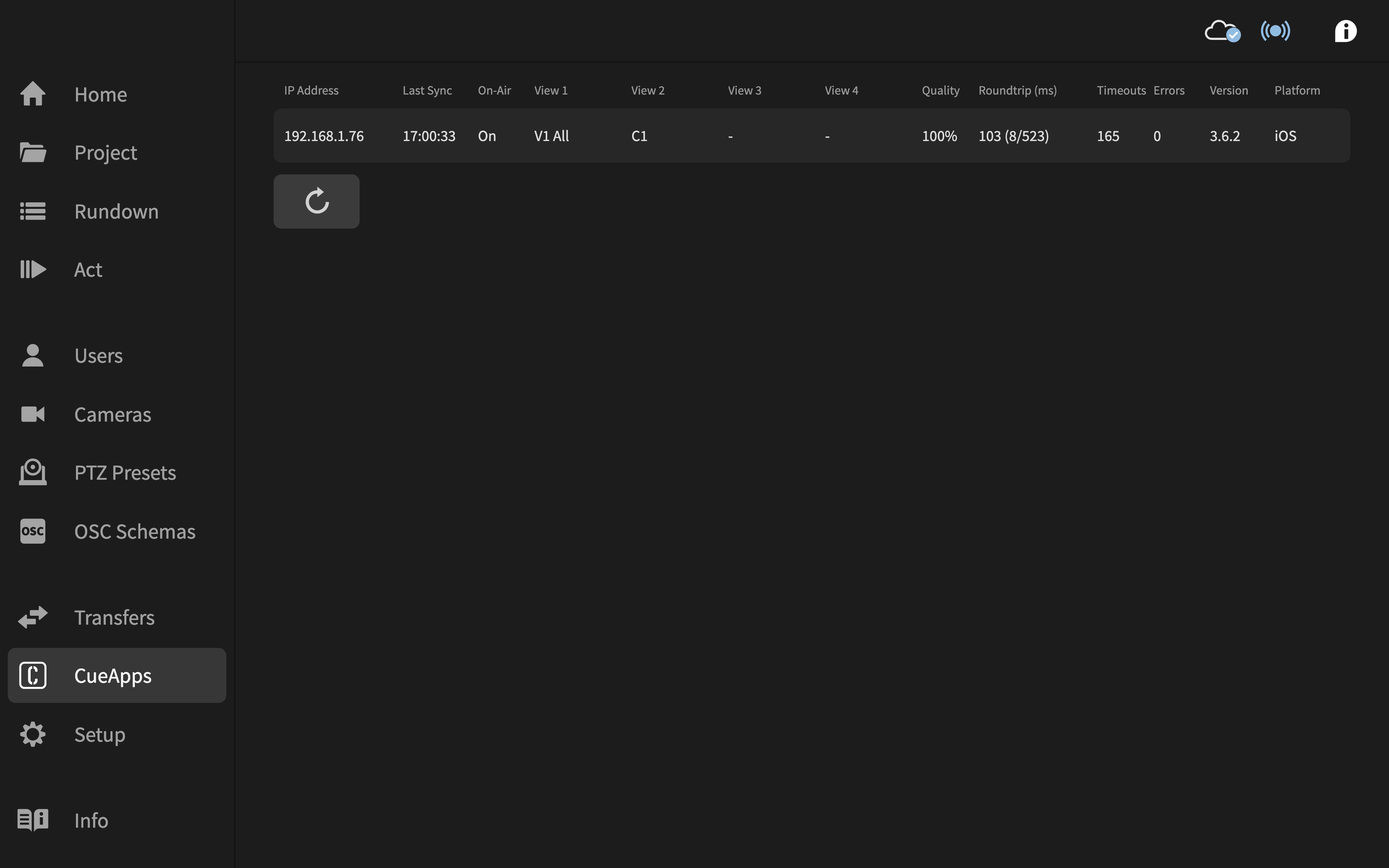
In the CuePilot application, you can view all CueApp devices connected to your project using the CueApps view.
CueApps view provides a quick and easy way to check how many CueApp devices are connected to the CueApp Server and see details about how each device is set up and working. Importantly you can also view whether the device has 'On-Air' on, which means that they will be following the playback.
Learn more about all of the information that CueApps view provides: CueApps View...
Learn more:
Networking...
CueApps View...