In this article:
Introduction
Download and Install the GVG Protocol
Connect the Vision Switcher
Enable the Vision Switcher Control in CuePilot
Introduction
CuePilot supports Vision Switchers over a number of different protocols. See Enable Vision Switcher Control.... If after following the steps to enable the Vision Switcher you are unsuccessful, it may mean your device requires an additional plug-in for remote control. The following steps let you install the GVG plug-in for the Panasonic Vision Switcher AV-HS410.
Download and Install the GVG Protocol
Download the applicable plug-in software and install it for your specific device.
Consult the manufacturer directly for additional support if needed.
Panasonic Broadcast, Cinema & Pro Video Support...
From the Panasonic support site, find Firmware / Software updates, which will take you to this downloads page:
Panasonic Downloads for Switchers...
Locate and install the GVG Protocol, following Panasonic's instructions.
Panasonic Live Switcher AV-HS410 direct link: GVG Protocol ver2.02
Connect the Vision Switcher
After the installation of the protocol is complete, follow the steps below to connect the Vision Switcher.
- Connect the serial cable on the CuePilot Studio Server to the 'Editor' connector at the rear panel of the AV-HS410 Vision Switcher.
- Use a CuePilot C1 Certified Serial Cable, or an RS-422 straight cable.
See also:
C1 Certified Serial Cable...
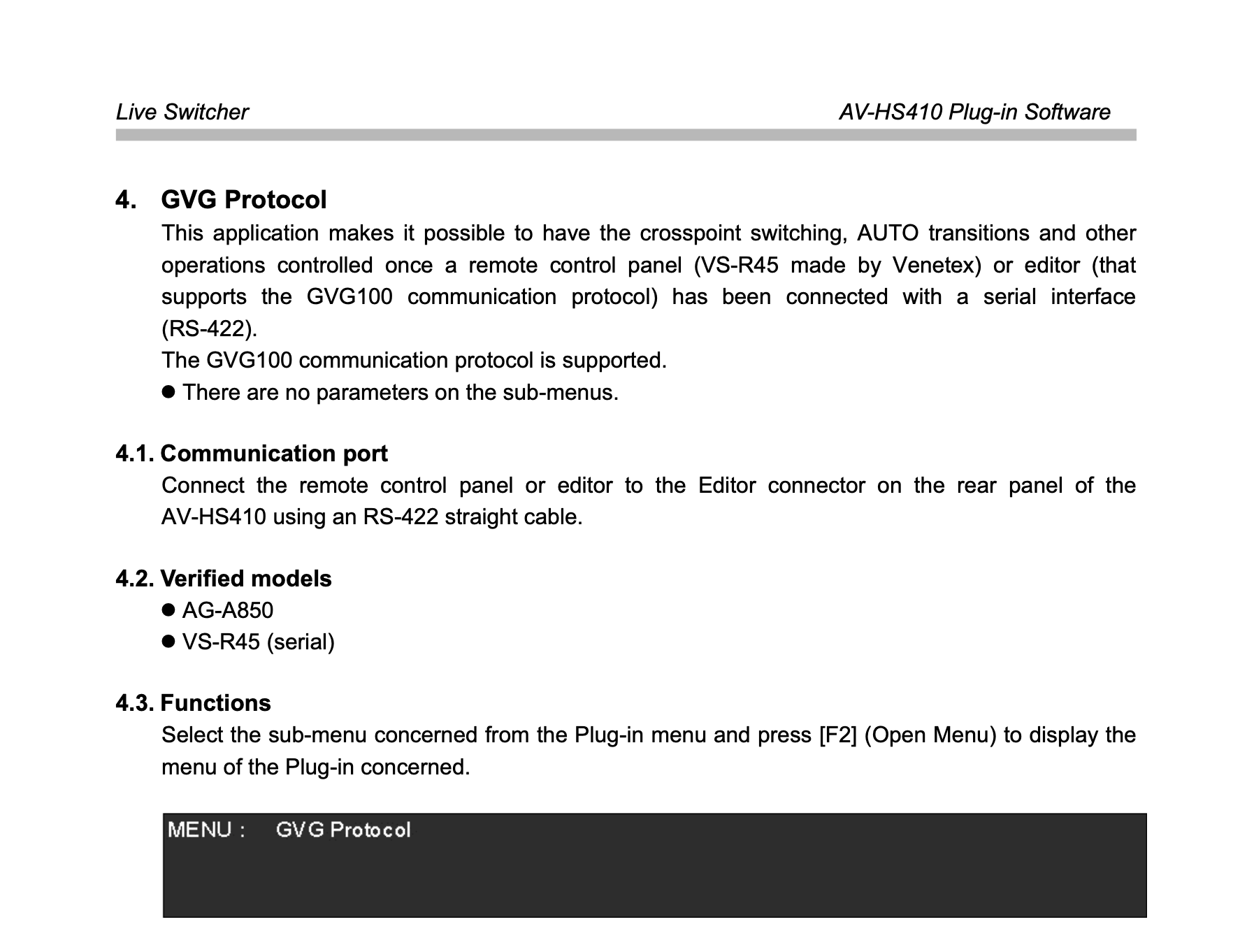
Panasonic AV-HS410 Plug-in Software Manual...
Enable the Vision Switcher Control in CuePilot
With the Panasonic Vision Switcher plug-in installed, connected and enabled, follow the usual steps to enable Vision Switcher control in CuePilot. Select the Panasonic protocol.
See also:
Enable Vision Switcher Control