In this article:
Introduction
Enable/Disable a Cue
Ignore Transition
Rerouting to Ignore
Introduction
There are a different reasons why you might want to leave Vision Cues in the Timeline but not have them be executed by the Vision Switcher. There are also different ways to achieve this.
Perhaps at the end of an Act you plan which shots you want to have as the audience applauds but want to switch them manually. Leaving the Vision Cues in the Timeline roughly where they should be but deactivated or setting the transition to 'ignore' will continue to display the Vision Cue in the Timeline but it will not be executed by CuePilot, letting you execute them on the Vision Switcher manually.
Another reason might be: during rehearsals you don't have all cameras functioning, so you might set the routing of a particular camera to be ignored.
Enable/Disable a Cue
You can keep a Cue in the Timeline but disable it so that it is not executed by the Vision Switcher.
To disable a Cue, but keep it in the Timeline:
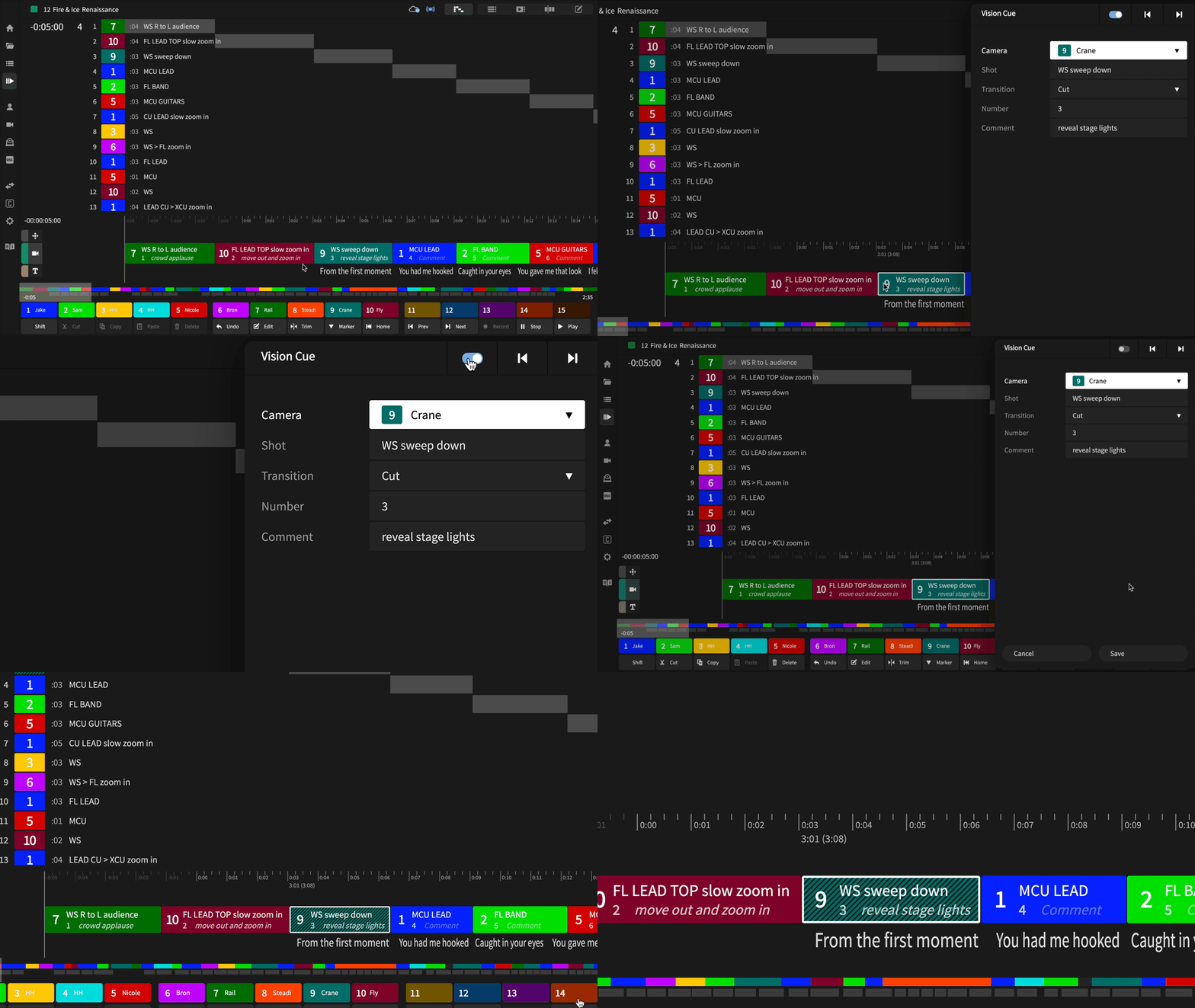
- Double click it to open that Cue's edit dialog
- Click on the Disable/Enable toggle and save
Disabled Cues will be shaded with a black diagonal stripes. They will not be executed by the Vision Switcher.
Alternatively use the keyboard shortcut: Mac: Command-Return or Windows: Ctrl+Enter.
This will enable/disable the selected Cue. If no Cue is selected then enable/disable the Cue at Playhead on the active Track
Ignore Transition
You can keep a Cue in the Timeline but prevent the Vision Switcher from cutting to it by changing its transition type.
To set a Cue's transition to be ignored:
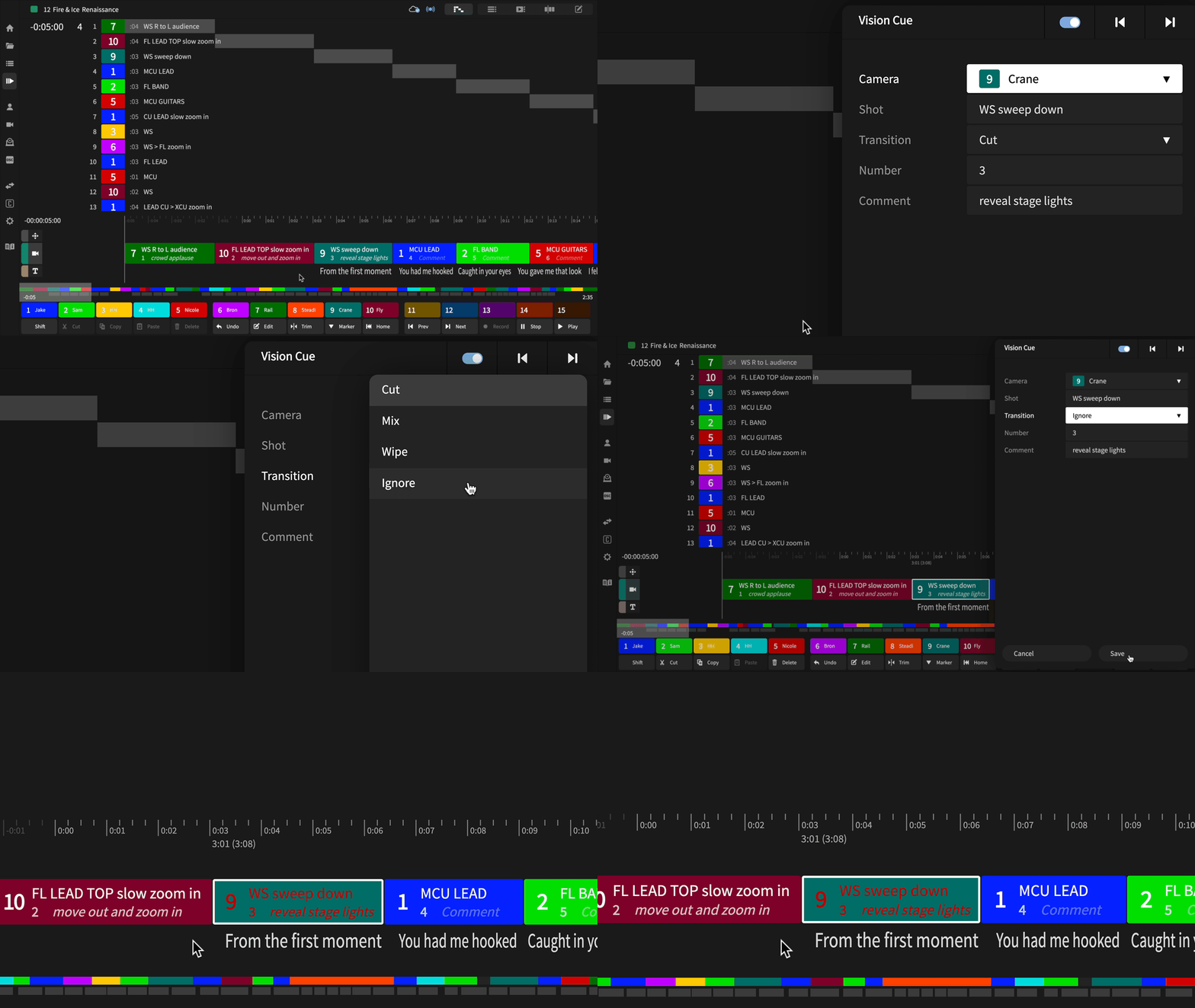
- Double click it to open that Cue's edit dialog
- Click on the Transition type and set it to Ignore
Cues with the transition to them ignored will have their text displayed in red. Because the transition to them is ignored, they will not be executed by the Vision Switcher.
Rerouting to Ignore
You can also change a camera's routing to have all Cues from that camera to be ignored. Perhaps the crane is not functional during rehearsals yet so you set the camera and all its Cues to be ignored.
To set a Camera and all its Cues to be ignored:
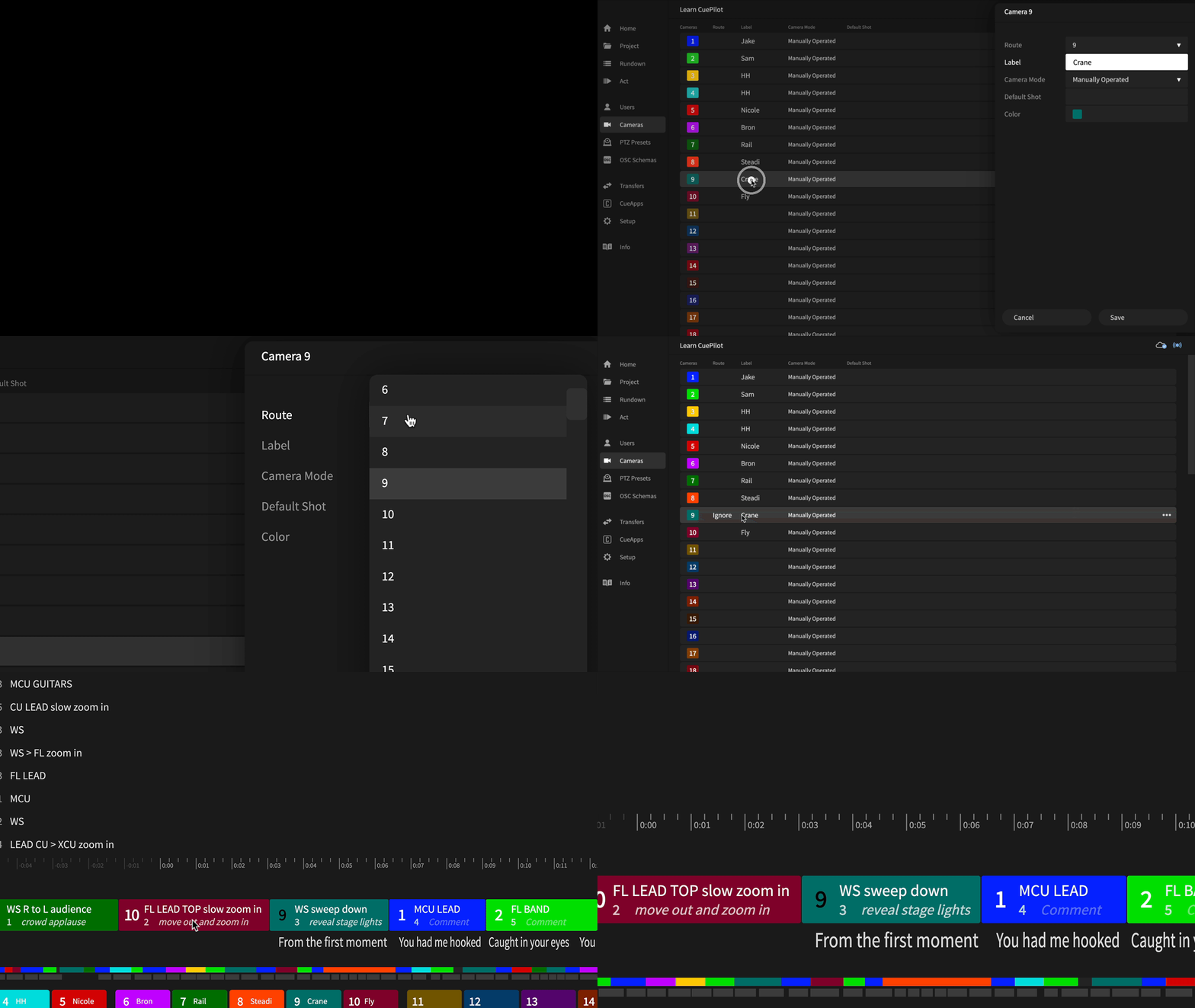
- Select the Cameras view and double click on the camera to open that camera's edit dialog
- Click on the Route and set it to Ignore
All Cues from that camera will have the camera number displayed in black. Because the camera is set to be ignored, they will not be executed by the Vision Switcher.