In this article:
Introduction
Import Cameras Settings
Import PTZ Presets
Introduction
All work in CuePilot is done in individual Projects. Every Project has one or more Rundowns, each containing a list of Acts to be performed in the specific show or production.
Once a production is completed its Project will expire. When you start a new Project that is similar to a previous production, maybe with the same camera plot, it might be helpful to import settings from a previously expired Project.
Please Note:
Importing a previous Project's Cameras or PTZ settings will replace your current Project's settings. Only Users with Owner access or Full Access access can import and override a Project's settings. You also need to have access to the previous Project that you want to import settings from.
Import Cameras Settings
Importing Cameras settings includes settings such as: Colour, Routing, Labels, and whether the a camera is a Manual or Preset camera.
- Open the Project that you want to import Cameras Settings to, then go to the Cameras view.
- The top status bar will show the open Project's name, confirming that you are adjusting settings for Cameras in that particular Project. From the menu select File > Import > Import Cameras Settings, or use the keyboard shortcut. (Mac: Command-Shift-I or PC: Ctrl+Shift+I).
- After downloading the latest Project list, the Import Cameras Settings dialog will show. In From Project choose from which Project you want to import Cameras settings from and select Import.

- A dialog will confirm that you want to replace the open Project's Cameras Settings with Cameras Settings from the chosen Project. Select Import.

Now your open Project will have the updated Cameras settings.
Import PTZ Presets
Importing PTZ Presets lets you import your previously created static and trace shots from a previous Project to a current project.
- Open the Project that you want to import PTZ Preset to, then go to the PTZ Presets view.
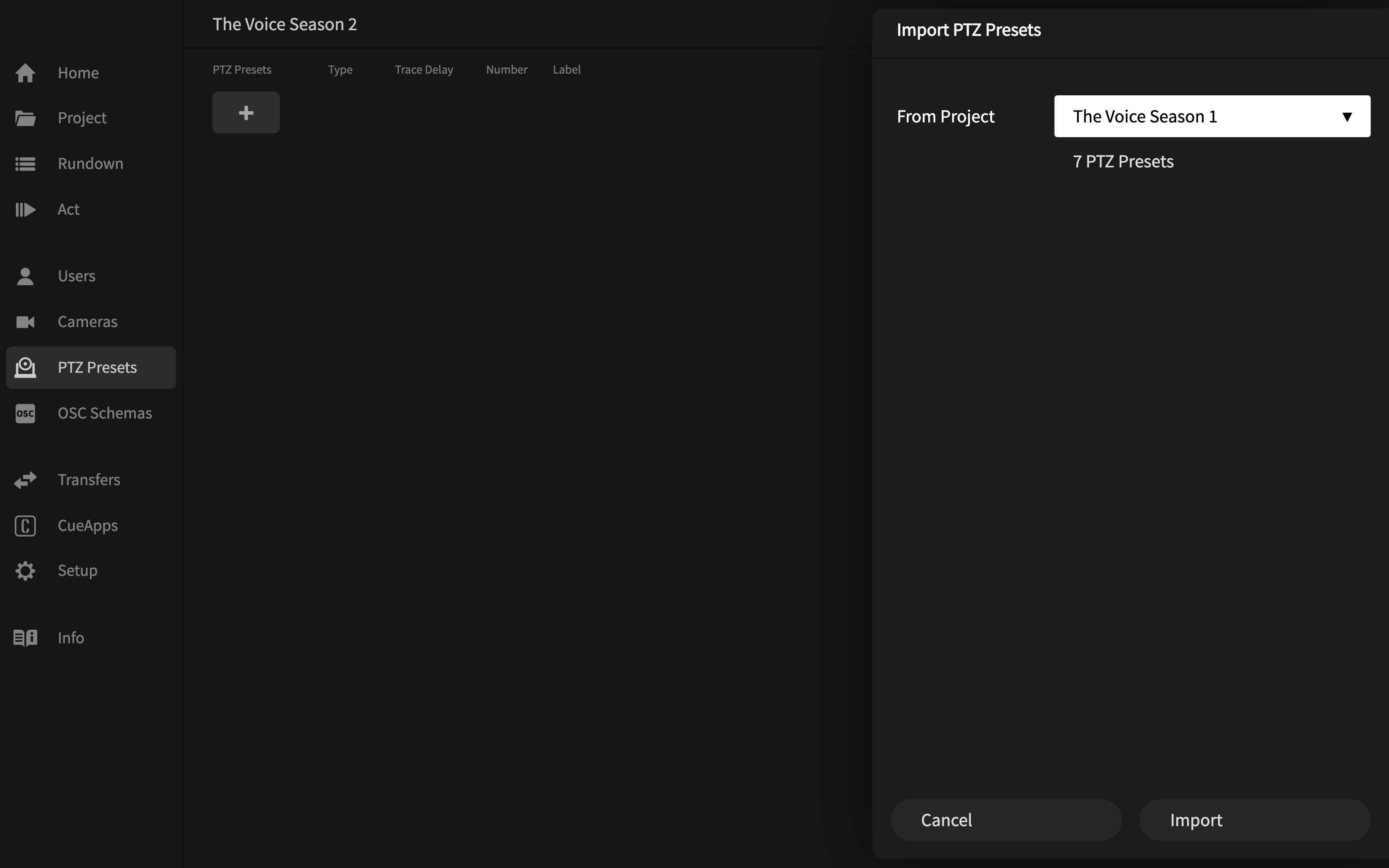
- The top status bar will show the open Project's name, confirming that you are adjusting settings for PTZ Presets in that particular Project. From the menu select File > Import > Import PTZ Presets, or use the keyboard shortcut. (Mac: Command-Shift-I or PC: Ctrl+Shift+I).
- After downloading the latest Project list, the Import PTZ Presets dialog will show. In From Project choose from which Project you want to import CamPTZ Presets from. With a previous Project selects the dialog will show you how many PTZ Presets will be imported. Select Import.
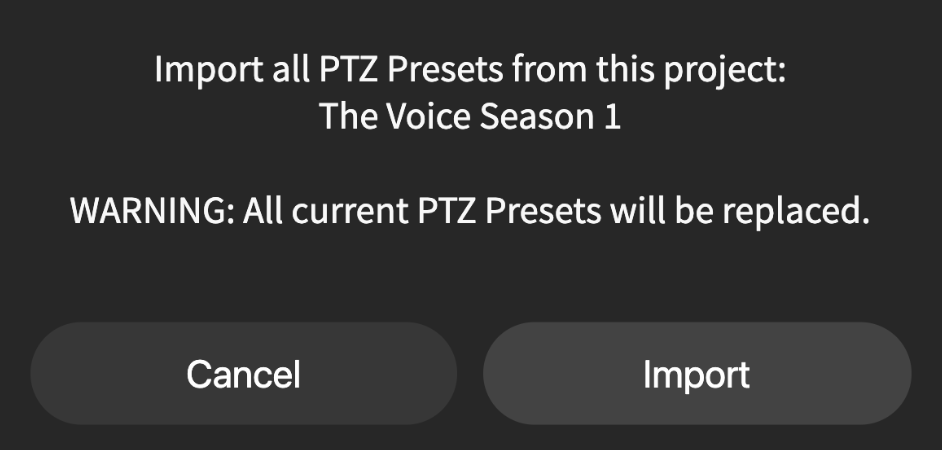
- A dialog will confirm that you want to replace the open Project's PTZ Presets with PTZ Presets from the chosen Project. Select Import.
Now your open Project will have the updated PTZ Presets.
Learn more:
Add Custom OSC Schemas to CuePilot...