In this article:
About CueApp
Studio Mode
Adjust your Views
Cloud Mode
Download CueApp
CueApp Simulator
About CueApp
Each camera operator can use CueApp - CuePilot’s app for iOS or Android.
CueApp has views to display countdown to each cue, and is very customisable.
CueApp works in two modes, either in STUDIO, for use live on a production, or CLOUD, for use reviewing Rundowns and Acts away from the studio.

Camera operators can write their own notes and comments in CueApp
Studio Mode
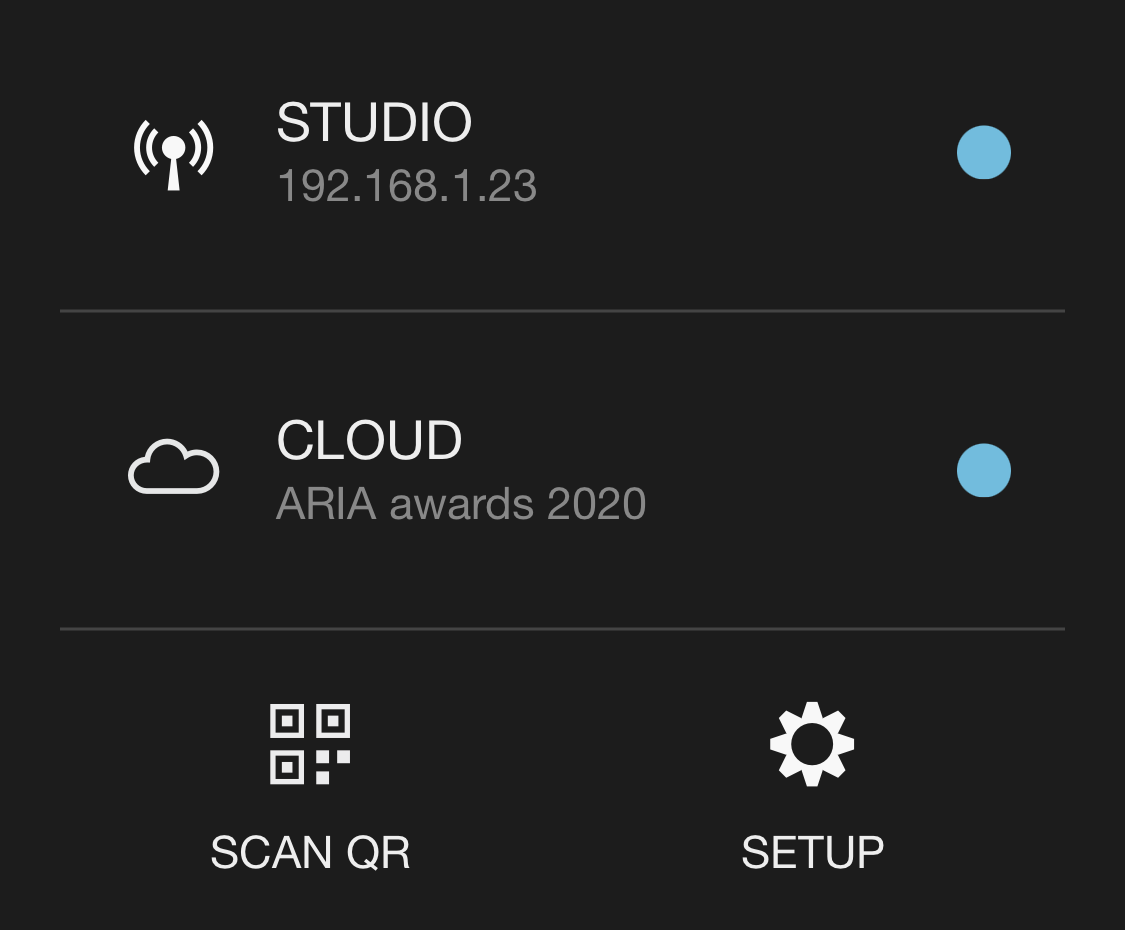
When you open CueApp, you'll need to enter the setup details to access a Project.
In SETUP, add the IP address of the server and the Project Code, or SCAN QR, to use your devices camera to scan a code that's been prepared. To retrieve the QR code you'll find this in the CuePilot desktop application on the computer being used as the CueApp Server. It is under Setup > 'QR code and Project Code'.
In STUDIO mode, CueApp is connected to a CueApp Server locally, either through a wifi network, or networked directly to the server. Some camera units provide network connection through the triax cable.
Always select STUDIO if you are using CueApp if you are in the studio on a live production. CLOUD mode is for use reviewing Rundowns and Acts when you are away from the studio.
If the CueApp server is active and accessible, there will be a blue dot next to it. If it is not available it will be grey. You need to be on the same network with the correct IP address for the CueApp Server for it to work. Is there is no blue dot, check if you are on the correct network and that the CueApp Server active on that same network.

Adjust your Views

Cloud Mode
Download CueApp
Download CueApp from the App Store for iPad and iPhone...
Download CueApp from the Google Play Store for Android...
CueApp Simulator
Learn more:
Video Tutorials of CueApp...